Pauses that feel natural in a conversation feel long on a screen. A two-second gap while someone thinks is nothing in person; in a short clip it is the moment people swipe away. Removing silences and filler words is one of the quickest ways to make a talking video feel tighter, as long as you stop before it starts to sound robotic.
Why pauses feel longer on video
In a room you watch the speaker’s face while they think, and the pause carries meaning. On a phone, in a feed full of other videos, a pause is simply nothing happening. The effect is strongest at the start of a clip, before the viewer has decided to stay.
Not every pause should go
Some silence does real work, and cutting all of it makes speech sound breathless. Keep the pauses that:
- come right before a punchline or a key number;
- let a laugh or a reaction land;
- separate two ideas, so the viewer hears the shift;
- carry emotion, such as the moment before a difficult answer.
Removing silence automatically
Silence removal finds the gaps in the audio and cuts them out. Two settings matter: how long a gap must be before it counts as silence, and how much padding stays around each cut. Too aggressive, and words lose their first or last sound; too gentle, and nothing changes. Leaving a little air around each cut keeps speech natural.
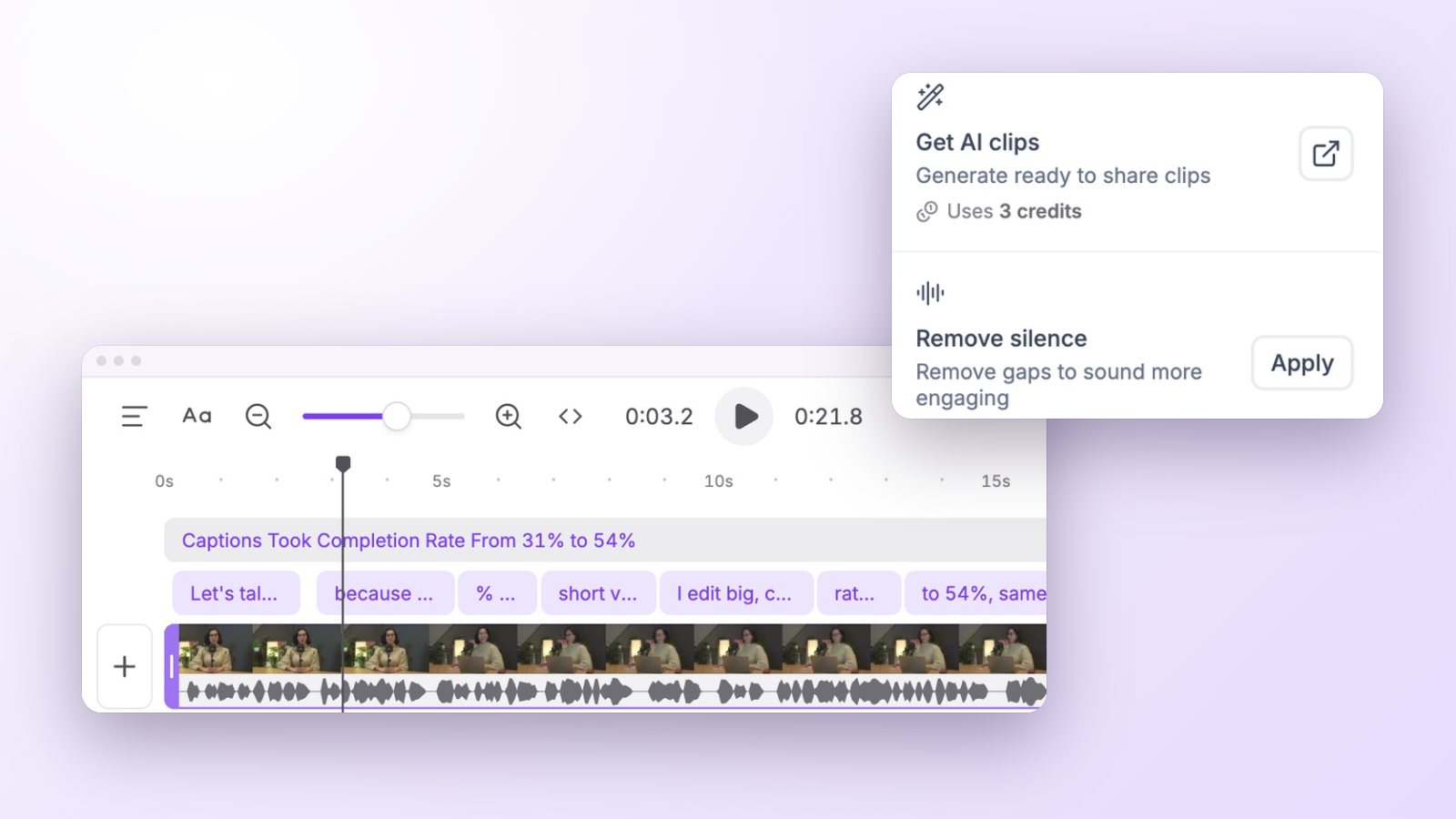
In Vidoveli, Remove silence sits in the editor’s AI tools, and its options set the pacing: Natural, Compact or Fast, from gentle trims to tight cuts. Apply it, listen, and undo if it went too far.
Filler words: um, uh, like, you know
Filler words are harder than silence because they are words. A few of them make speech sound human; a cluster of them makes the speaker sound unsure. Cut the ones that stall a sentence, especially at the start of an answer, and leave the ones woven into its rhythm.
Editing by text makes this fast. When the transcript is the video, deleting “um” from the text cuts it from the clip, and you can see every filler word at a glance instead of listening for it. The AI video editor page shows how editing by text works in Vidoveli.
Hide the cuts
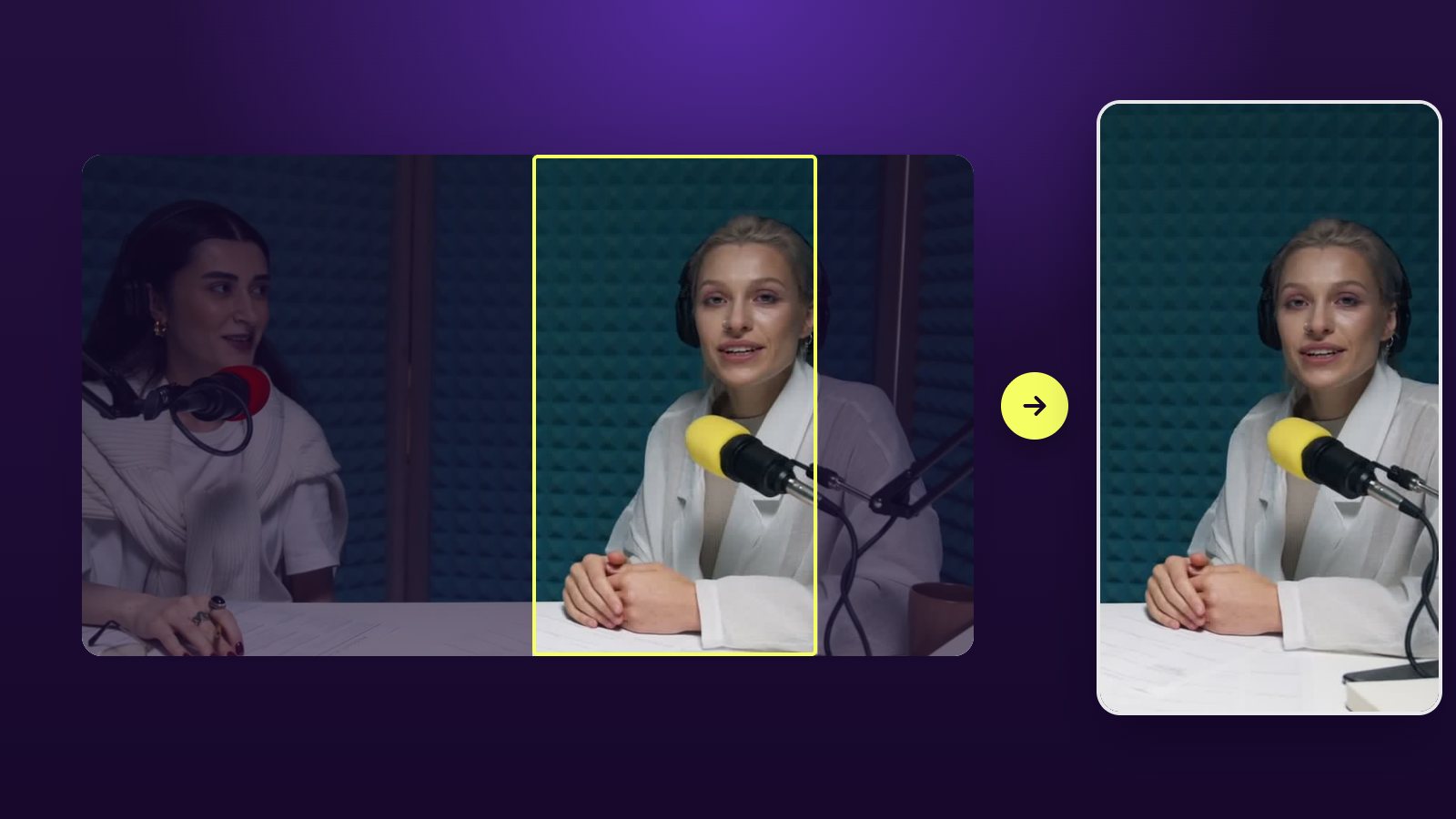
Every cut in a single-camera video is a small jump in the picture. Viewers of short videos are used to jump cuts, but a few habits make them smoother: lay B-roll over a cut so the picture changes for a reason, or switch between speakers in a multi-camera recording.
Captions help as well. When each word lights up as it is spoken, like the captions from an auto caption generator, the eye stays busy across the cuts.
How to do it in Vidoveli
A quick routine for a single clip takes a couple of minutes.
- Open a clip in the editor, or switch off Get AI clips when you add a video to open the whole of it.
- In AI tools, run Remove silence. Under its options, pick Natural, Compact or Fast pacing.
- Read the transcript and delete the filler words that stall a sentence.
- Play the clip with sound, then once more on mute to check the captions.
- Undo anything that went too far.
Check it twice: with sound and without
Listen once with headphones for clipped words and breaths cut in half. Then watch once on mute, the way many people will, to make sure the captions still line up and read well after the cuts.
Where this fits in a clip workflow
If you cut clips from podcasts or interviews, tightening is usually the last step before export: choose the moment, fix the first line, remove the dead air, check the captions. The podcast clip maker page and our guide to turning long videos into short clips cover the steps before it.