

Animated captions, generated for you
Vidoveli transcribes your video in 40 languages and turns the words into animated captions you can style, fix and translate, then burns them into the clip.
YouTube, Google Drive™, Dropbox or MP4/MOV/WebM links, or a file upload · up to 2 hours · 60 free credits a month
What it is
Captions that keep people watching
Most short videos are watched on phones, often with the sound off. Captions let people follow a talking clip anywhere, and animated captions that light up each word as it is spoken give the eye a reason to stay.
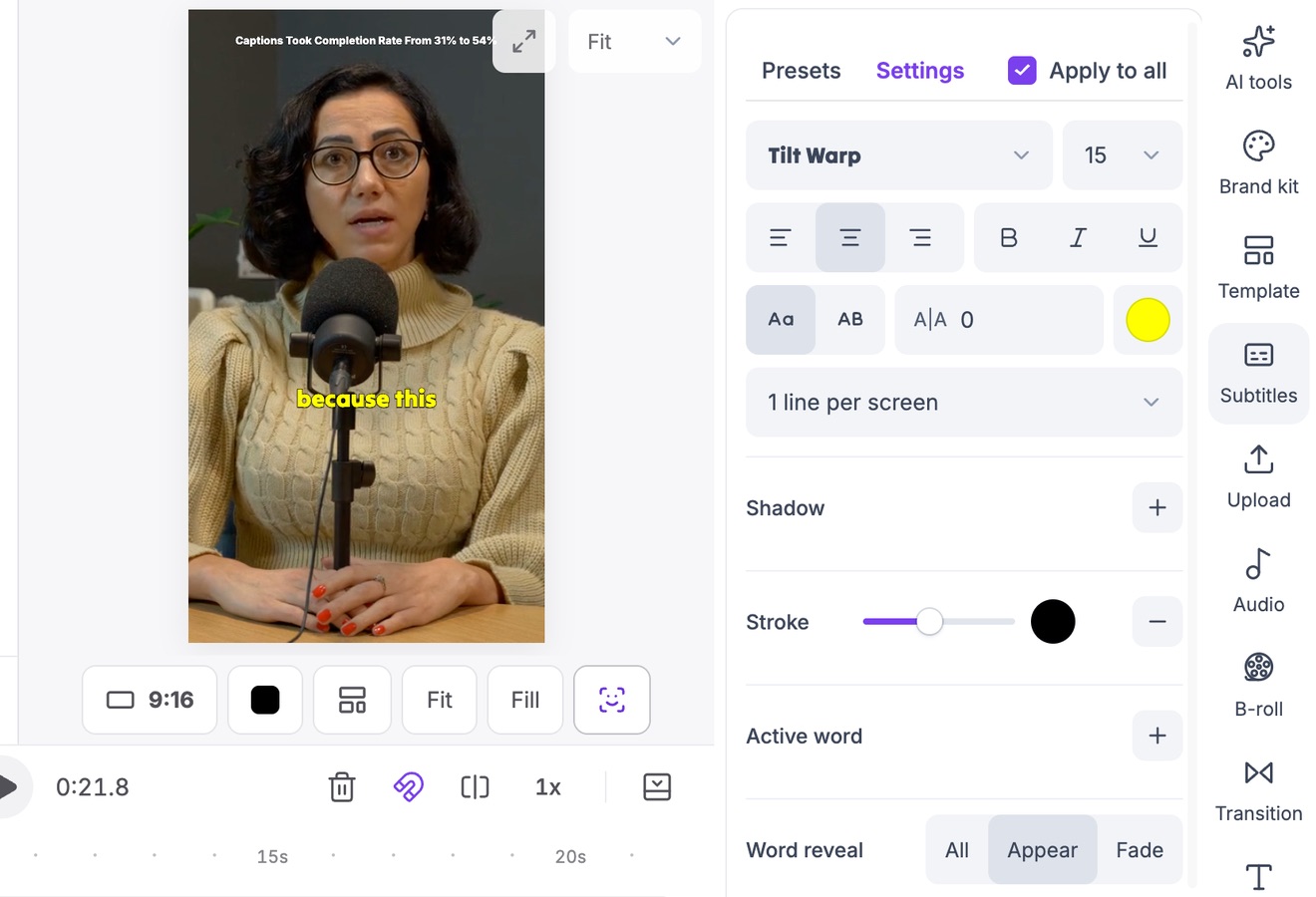
Vidoveli generates captions from the same transcript it uses to pick clips, timed word by word. You choose one of 9 animated caption styles, then change the font, size, color, stroke, position or the way words appear. Fix a misheard name in the transcript and the caption follows.
Captions can be translated into any of the supported languages or shown in two languages at once. You can also bring your own subtitles as TXT, SRT or DOC, and download the transcript as TXT, SRT or VTT. For design advice, read about caption styles that keep people watching.
Word-by-word timing
Each word lights up as it is spoken, so viewers can follow along without sound.
9 animated caption styles
Start from a style, then make it yours: font, color, size, stroke and position.
40 languages
Automatic language detection, plus translated and bilingual captions.
Keywords and emoji
AI highlights the words that carry the point and adds emoji where they fit.
Your own subtitle files
Import TXT, SRT or DOC files, or download the transcript as TXT, SRT or VTT.
Clean captions
Censor words with a bleep or mute and mask them in the captions.
How it works
How to use the Auto Caption Generator
Add a video
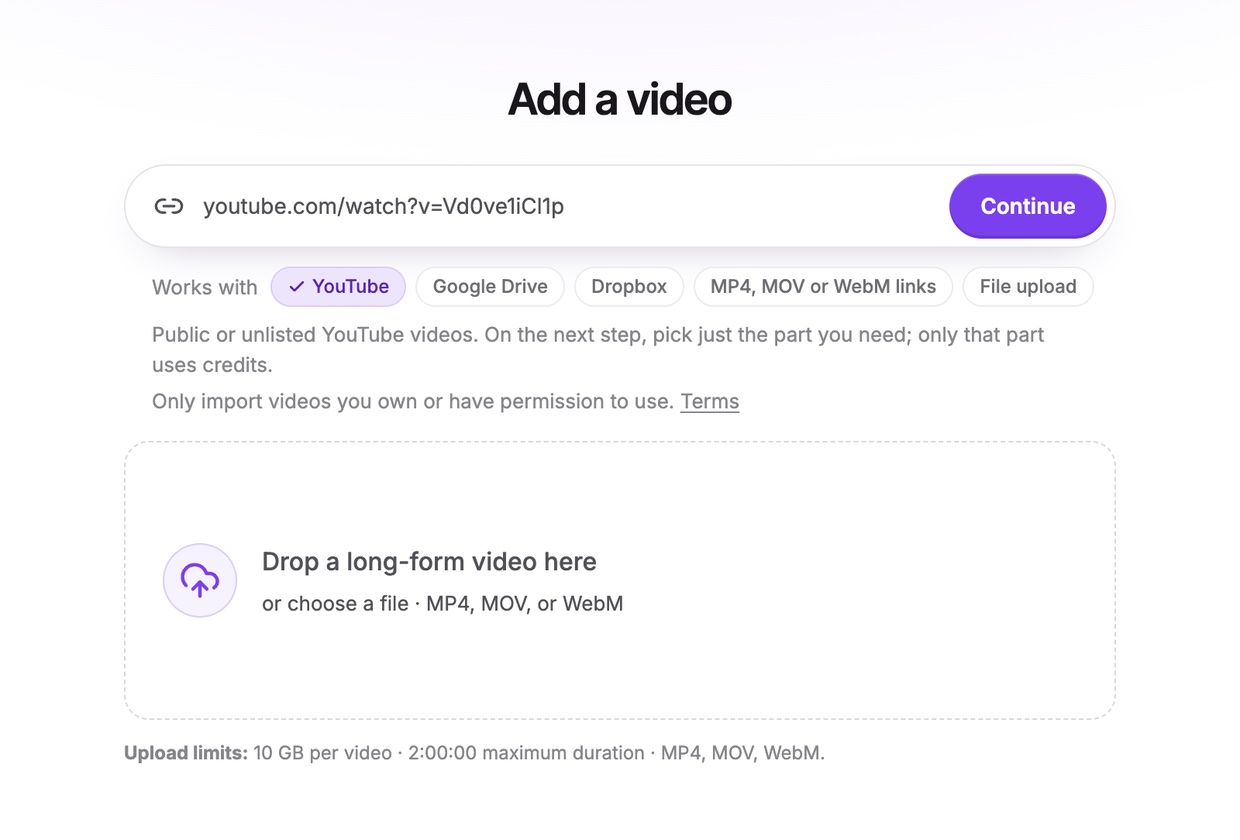
Paste a link to your video on YouTube, Google Drive or Dropbox or a direct video link, or upload the file. Leave Get AI clips on for captioned clips, or switch it off to open the full video in the editor.

Check the words
Read through the transcript for names and numbers. Edit a word, split or merge a line, and the captions follow.

Style and export
Pick a style, apply it to every clip at once, and export an MP4 with the captions burned in.
Who it’s for
Captions for every kind of clip
Social clips
TikTok, Reels and Shorts, where most people scroll with the sound off.
Interviews and podcasts
Two speakers, names and numbers, all easy to correct in the transcript.
Lessons and explainers
Captions that help viewers keep up with technical terms.
Audiences abroad
Translated or bilingual captions for viewers in other languages.
Caption checklist
Five checks before you export captions
Automatic captions get most words right. These are the places they slip, and the habits that make captions easy to read.
- Names and numbersProper names, brands and figures are where transcripts most often go wrong. Read them once.
- Two lines at mostShort lines read faster. One line per screen suits punchy clips.
- Big enough for a phoneIf you squint at your own preview, the captions are too small.
- Clear of the buttonsKeep captions near the middle, away from the platform’s text and buttons along the bottom and side.
- Contrast on every frameA stroke or a background box keeps white text readable over bright footage.
FAQ
Questions about the Auto Caption Generator
How do I add captions to a video automatically?
Upload the video or paste a link, and Vidoveli transcribes it and adds animated captions to every clip. Pick a style, correct any word in the transcript, and export the MP4 with the captions burned in.
Which languages are supported?
Transcription and captions work in 40 languages with automatic language detection. Captions can be translated between them or shown in two languages at once.
Can I edit the captions?
Yes. Edit the text in the transcript or the subtitle editor, split or merge lines, and change the style for one clip or apply it to all of them.
Can I download an SRT file?
Yes. You can download the transcript as TXT, SRT or VTT, and import your own subtitles as TXT, SRT or DOC.
Are the captions burned into the video?
Yes. Exported clips carry the captions as part of the picture, so they show on every platform, whether or not the viewer has captions turned on. See how to add captions to short videos for when each kind fits.
Is the caption generator free?
Captions are included on every plan, including Free, which has 60 credits every month for processing video. Free exports are 720p with a small watermark. See pricing.
Keep going
Related tools and guides
Vertical Video Converter
Horizontal video turned into 9:16, with the speaker kept in frame.
See how it worksTikTok Clip Maker
Long videos and YouTube links cut into TikToks with captions.
See how it worksVideo to Reels Converter
Long videos turned into Instagram Reels with captions and B-roll.
See how it works
 Captions
How to add captions to TikTok, Reels and YouTube Shorts
The captions TikTok, Instagram and YouTube add for you, why many creators burn captions in anyway, and a quick way to add, check and style captions on every clip.
 Captions
Caption styles that keep people watching short videos
How to choose captions for TikTok, Reels and Shorts: size, position, word highlighting, emoji and keyword emphasis, with examples from Vidoveli’s caption styles.
 Guides
AI video editing, explained: what it automates and what still needs you
What AI video editing does today: finding highlights, captions, reframing, silence removal and B-roll. And the editing decisions an AI video editor should leave to you.



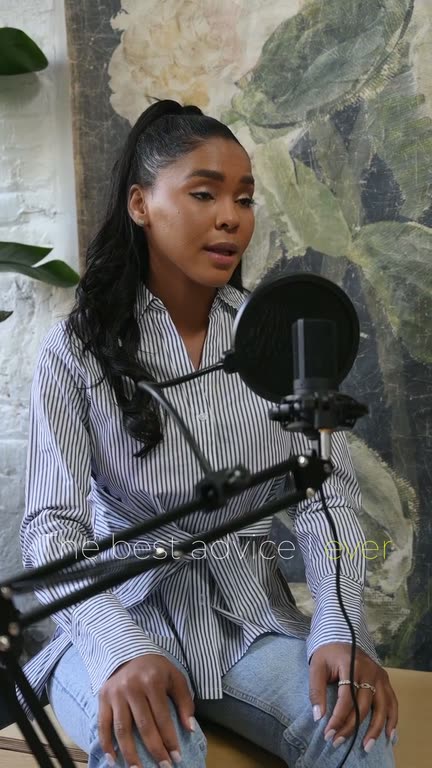
Captions people read,
in a few clicks
Upload a video and see it captioned in your language. Free to start, no card needed.