

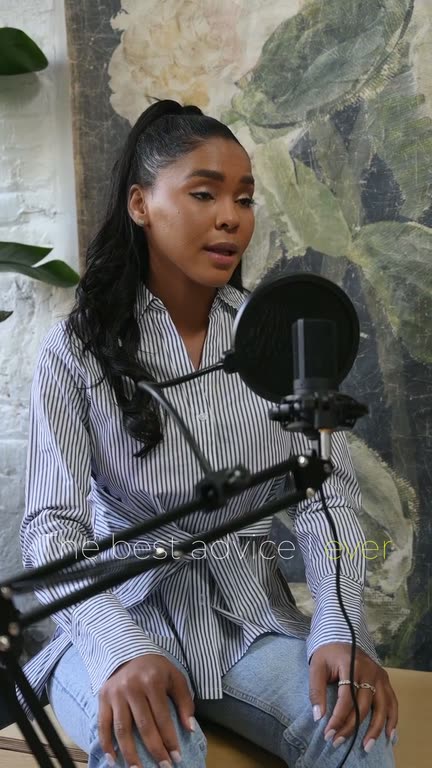
Horizontal video to vertical, speaker in frame
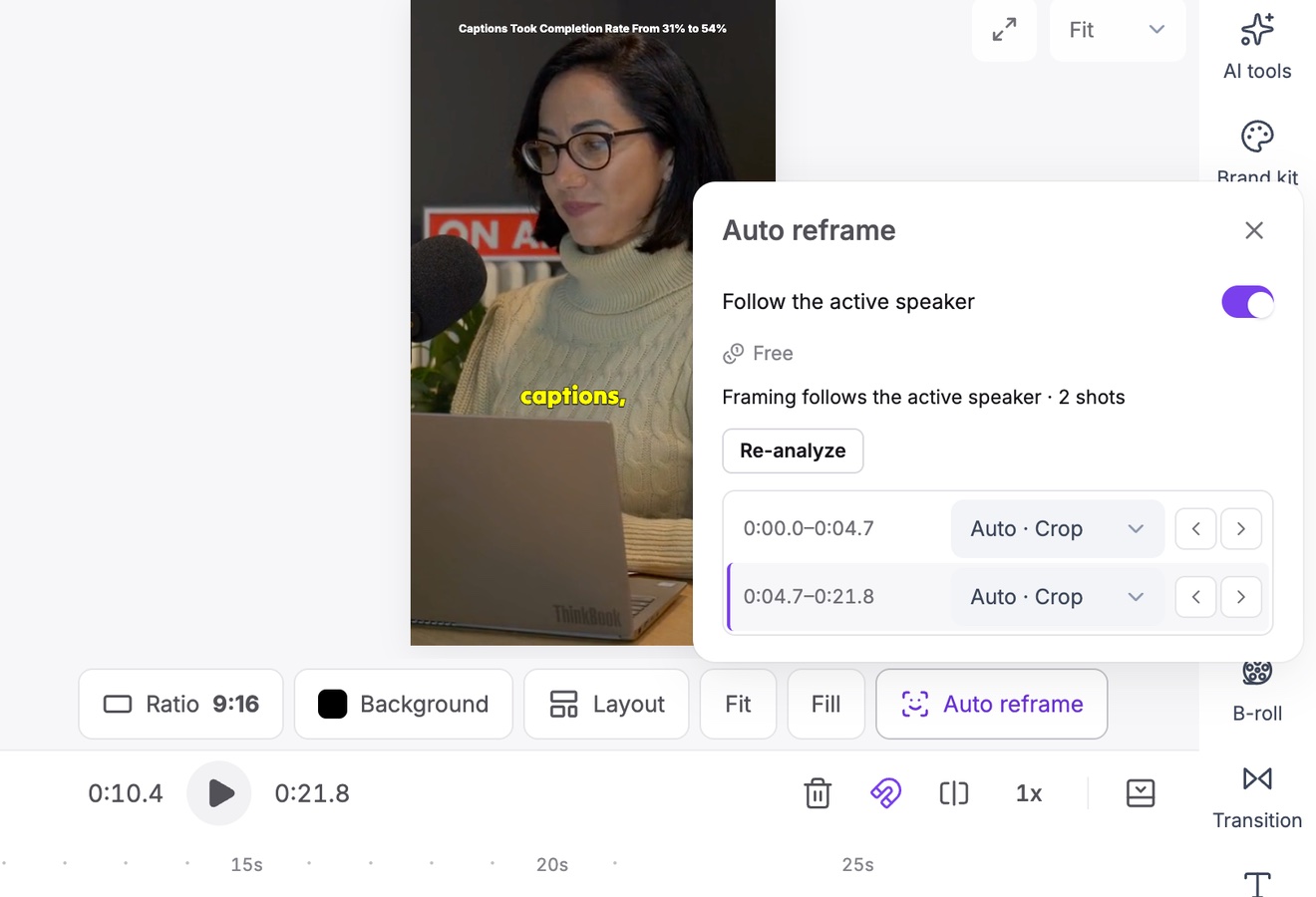
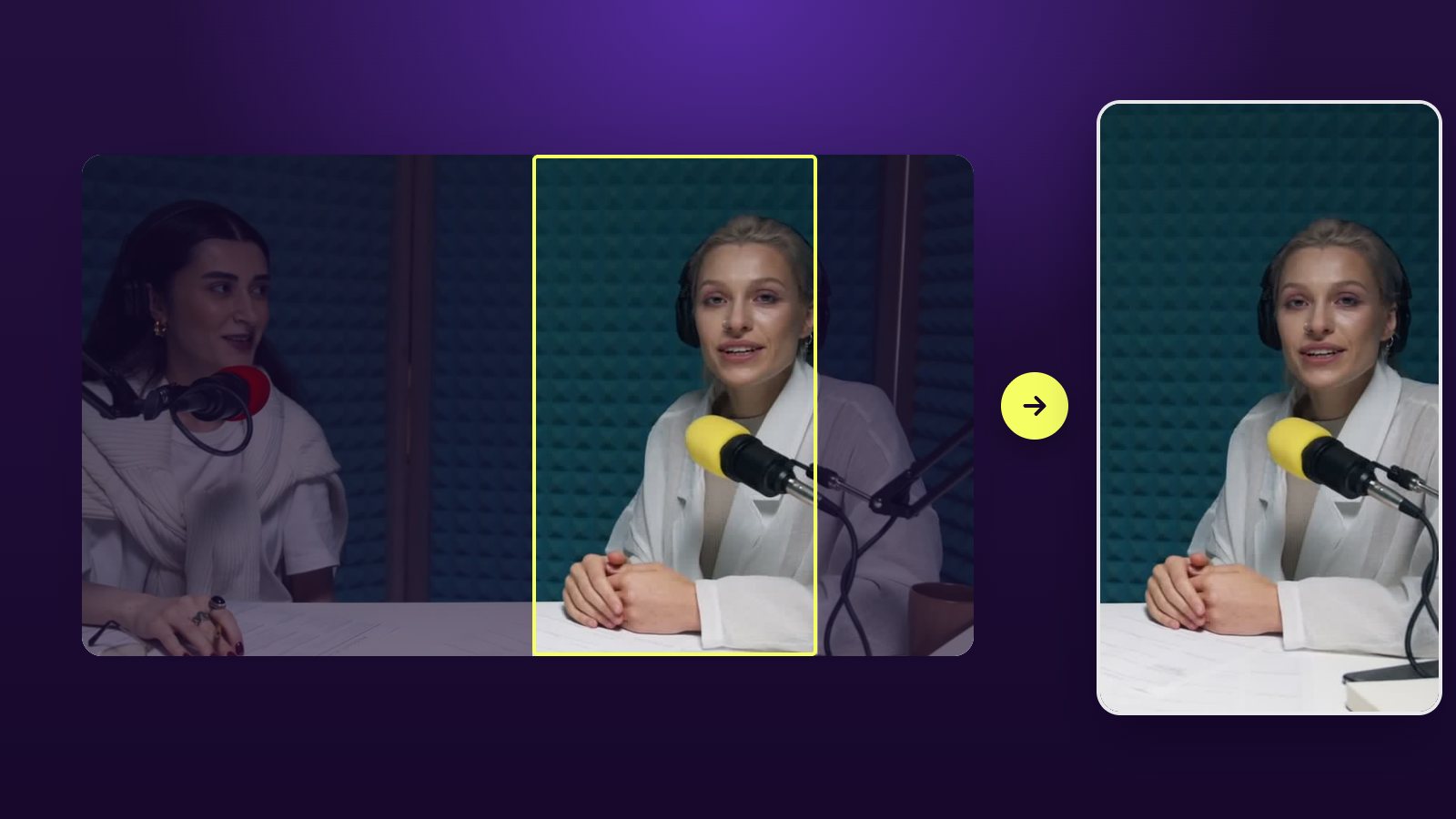
Auto reframe follows whoever is talking and turns a wide 16:9 recording into 9:16 for TikTok, Reels and Shorts, or into 1:1 and 4:5 for the feed.
YouTube, Google Drive™, Dropbox or MP4/MOV/WebM links, or a file upload · up to 2 hours · 60 free credits a month
What it is
Why a center crop is not enough
Cutting a 16:9 picture down to 9:16 keeps only about a third of its width. A fixed center crop works for one person sitting still in the middle. It fails as soon as they lean back, stand up or hand over to someone across the table.
Vidoveli’s auto reframe finds the people in each shot and follows whoever is speaking, cutting to the next person when they start to talk. When two people trade lines quickly, a split-screen layout keeps both in view. Where a crop would lose something important, such as a slide, switch the clip to Fit and fill the space with a blurred, colored or image background.
You can check every shot it planned, change the framing of any of them, and switch the ratio at any time. Our guide on converting horizontal video to vertical covers when to crop, fit or split.
Follows the active speaker
The framing moves with whoever is talking and cuts between speakers.
Split screen and picture-in-picture
Keep two people, or a speaker and their screen, in view at once.
Fit or fill
Fill the frame, or fit the whole picture over a blurred, colored or image background.
4 aspect ratios
9:16, 1:1, 4:5 and 16:9 from the same clip, switchable at any time.
Shot-by-shot control
See each shot the reframe planned and change its framing if you disagree.
Captions included
Animated captions in 40 languages, styled once and applied to every clip.
How it works
How to use the Vertical Video Converter
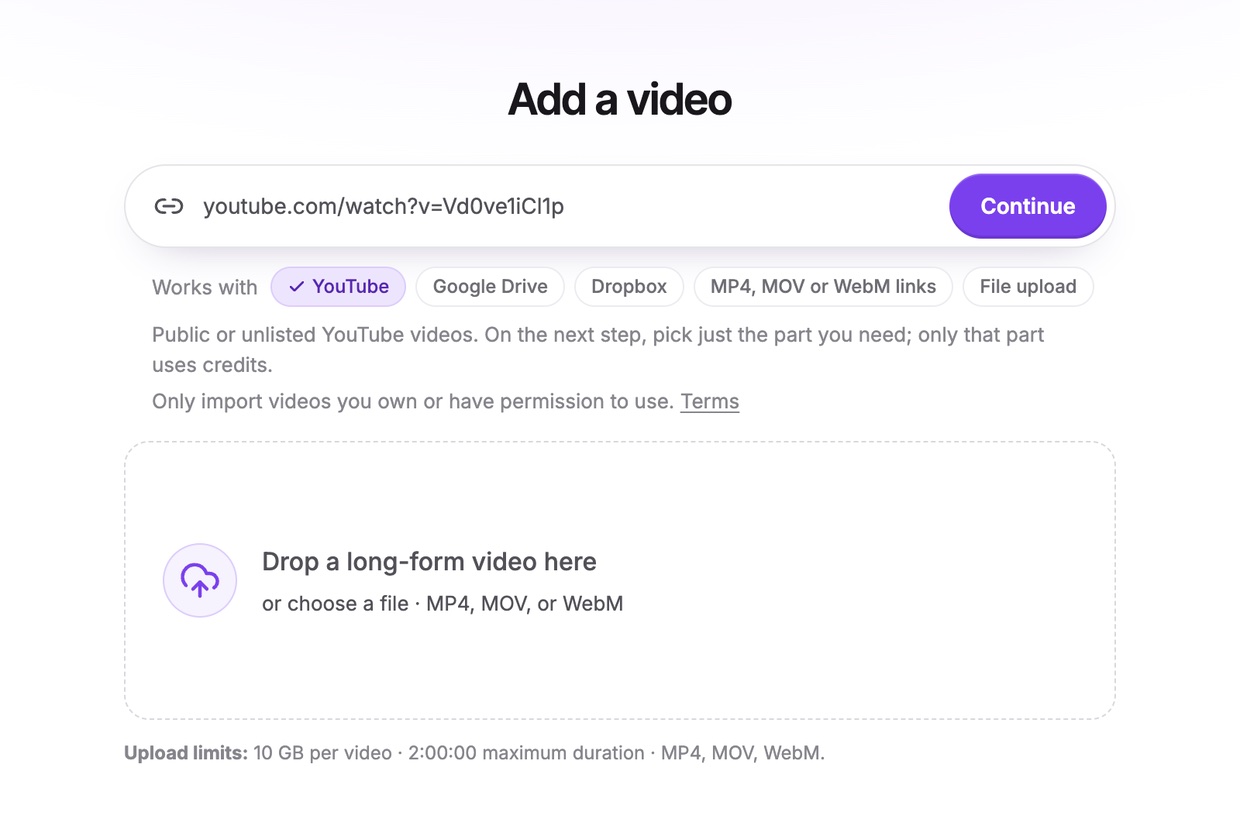
Add the horizontal video
Paste a link to your 16:9 video on YouTube, Google Drive or Dropbox or a direct video link, or upload the file. Get AI clips, or open the full video in the editor.
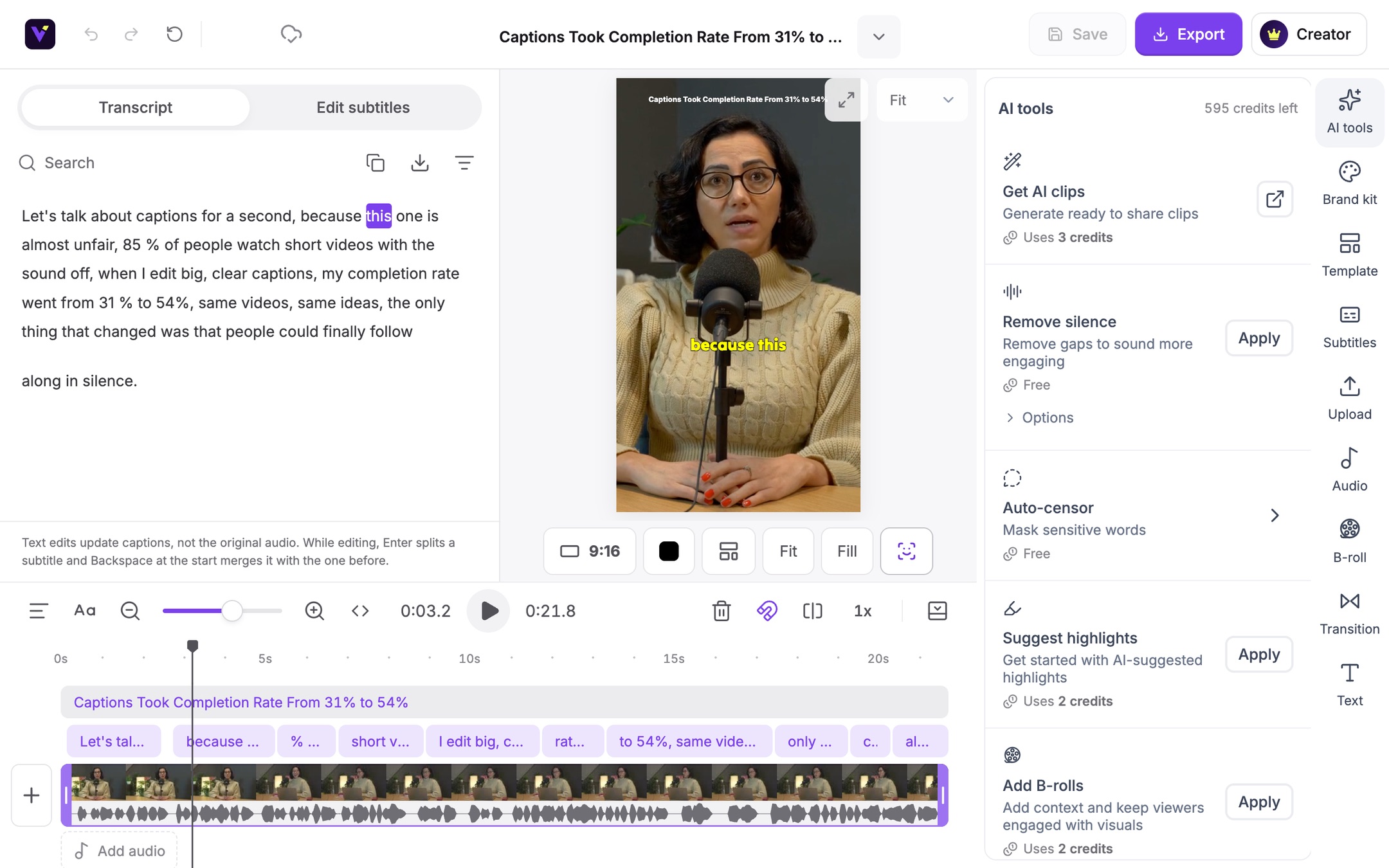
Choose 9:16 and auto reframe
Pick the ratio and switch on Follow the active speaker. Vidoveli plans the framing shot by shot.
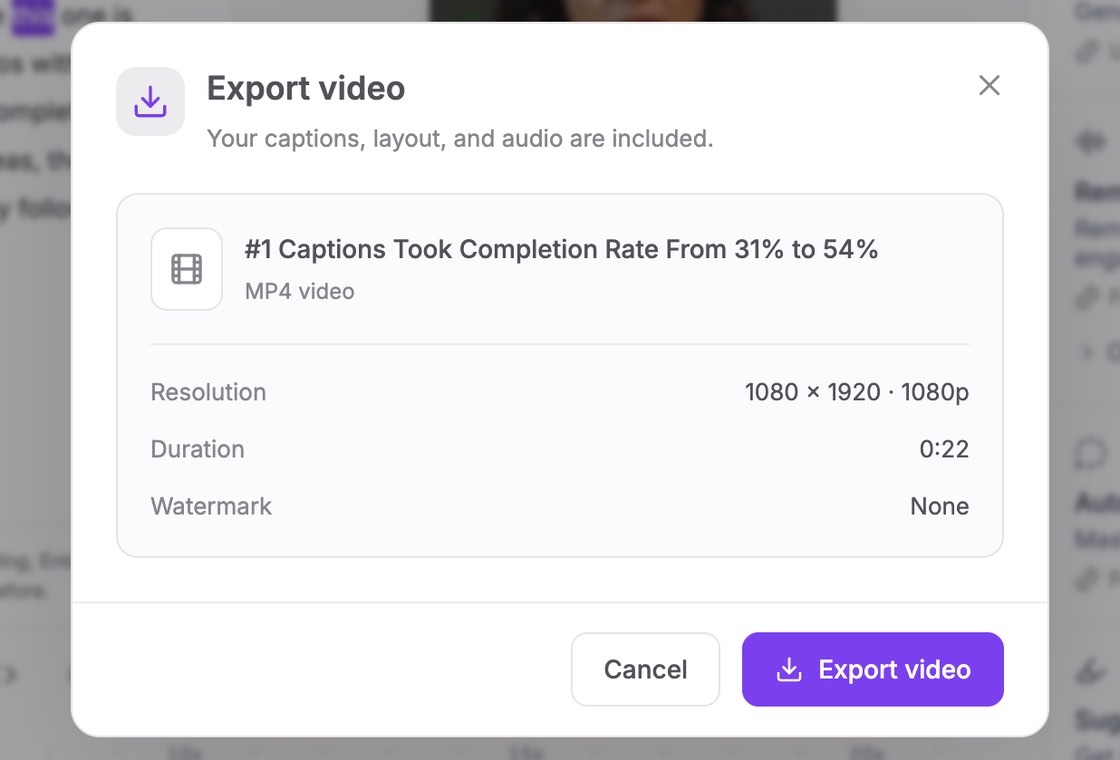
Check the shots and export
Look through the shots, change any framing you want, and export an MP4 in the ratio you chose.
Who it’s for
Wide recordings that need a new shape
Podcasts and interviews
Two or three people at a table, each followed in turn.
Webinars and screen recordings
A speaker and their slides, kept together in a split layout.
Talks and panels
A presenter who walks the stage, kept in frame.
Old landscape videos
Your 16:9 back catalog, reshaped for the Shorts and Reels feeds.
Crop, fit or split?
Pick the right layout for each clip
No single layout suits every clip. Use this as a quick guide.
- Crop and followOne or more people talking to the camera. The most natural look on a phone.
- Split screenFast back-and-forth between two people, or a speaker and a screen.
- Fit with a backgroundSlides, wide scenes, or anything with text near the edges.
- Square or 4:5LinkedIn and Facebook feeds, where a shorter frame leaves room for the post text.
FAQ
Questions about the Vertical Video Converter
How do I convert a horizontal video to vertical?
Add the video to Vidoveli, choose 9:16 and switch on auto reframe. The framing follows whoever is speaking, shot by shot. Check the shots, adjust any you like, and export the vertical MP4.
Can I make a video vertical without cropping it?
Yes. Choose Fit to keep the whole picture and fill the rest of the frame with a blurred, colored or image background. It suits slides and wide shots.
What aspect ratio is vertical video?
Vertical video for TikTok, Reels and Shorts is 9:16. Vidoveli also exports 1:1 and 4:5 for feeds, and 16:9 for YouTube and websites.
Does auto reframe work with more than one speaker?
Yes. It follows the person who is talking and cuts to the next speaker, and a split-screen layout can keep two people in view during quick exchanges. The podcast clip maker page shows how that plays out in interviews.
What resolution are the exports?
Clips export as MP4. The Free plan exports 720p, which is 720 × 1280 for 9:16. Creator and Business export 1080p (1080 × 1920), and 4K (2160 × 3840) when the video you add is 4K.
Is it free to use?
You can start free: the Free plan includes 60 credits every month, and auto reframe is part of every plan. Free exports carry a small watermark. See pricing.
Keep going
Related tools and guides
Auto Caption Generator
Animated captions in 40 languages, timed to every word.
See how it worksVideo to Shorts Converter
Turn any long video into short vertical clips for every feed.
See how it worksTikTok Clip Maker
Long videos and YouTube links cut into TikToks with captions.
See how it works
 Guides
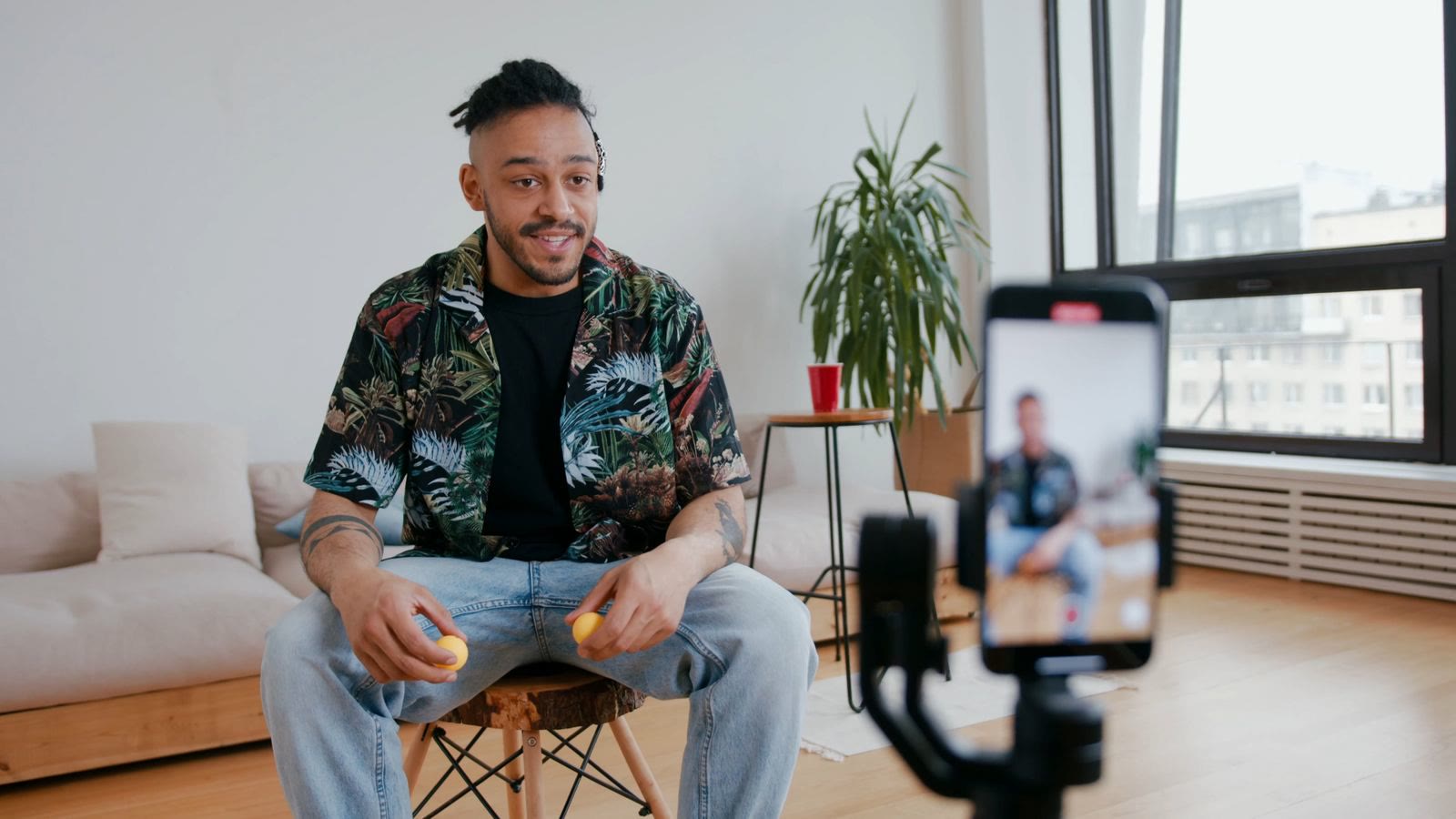
How to convert horizontal video to vertical without losing the speaker
Crop, fit or split screen? How to turn 16:9 video into 9:16 for TikTok, Reels and Shorts while keeping faces, slides and captions in frame, and when auto reframe helps.
 Guides
How to turn a long video into short clips without re-watching it
A step-by-step way to cut podcasts, interviews and webinars into short clips with a video clipping tool, from picking moments to captions and export.
 Workflows
How to repurpose a webinar into short clips people actually watch
Turn one recorded webinar into a month of short clips for LinkedIn, YouTube Shorts and Reels: which moments to cut, how to keep slides readable and how to post them.
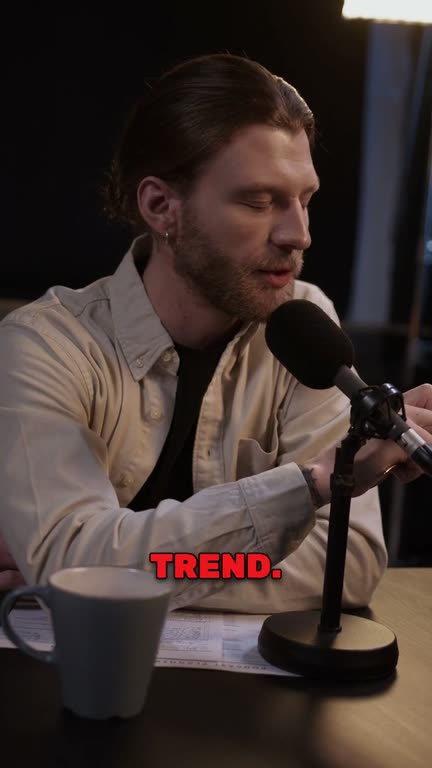

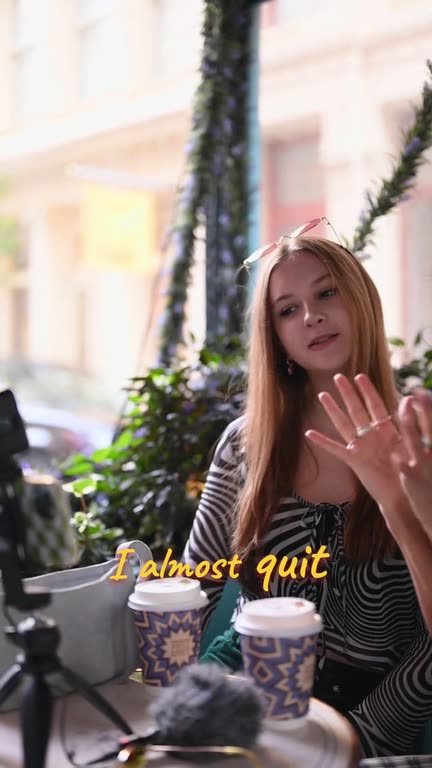
Every wide recording,
ready for the vertical feed
Upload a video and watch auto reframe follow the speaker. Free to start.