Most of what makes a talking video too long is in the words: the false start, the point made twice, the story that wanders before it lands. When you edit video by text, you find those parts by reading instead of scrubbing, and you cut them by deleting them from the transcript. Here is how it works, a step-by-step routine for a talking video, and the few jobs a timeline still does better.
How editing by text works
When you add a video, it is transcribed word by word, and every word keeps the moment it was spoken. That is what makes the text work as an editor: select a sentence and the editor knows exactly which stretch of picture and sound it covers. Delete it, and that stretch leaves the video, with the cut falling between two words rather than in the middle of one.
Captions come from the same transcript, so they follow every cut by themselves. There is no second pass to line the subtitles up again after you trim.
Step 1: Open the video with its transcript
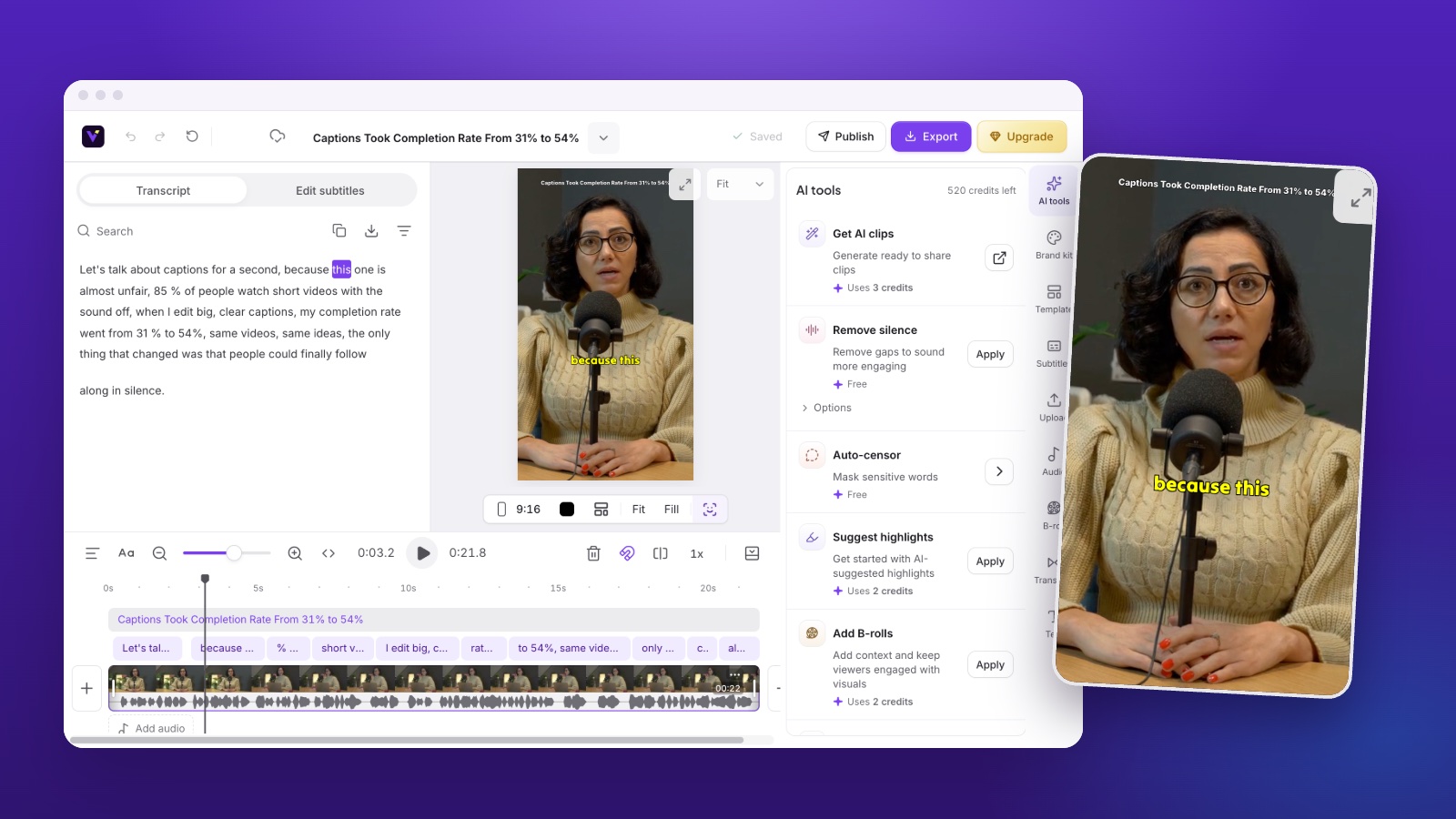
In Vidoveli, every clip the AI finds opens in the AI video editor with its transcript on the left. To edit a whole recording instead, switch off Get AI clips when you add the video, and the full video opens with the full transcript.
Read it once from top to bottom before you change anything. Search jumps to a name or a topic and marks every match; Enter moves to the next one. Click any word and the playhead goes to the moment it was said, so you can hear a sentence before you decide what to do with it.
Step 2: Cut by deleting words
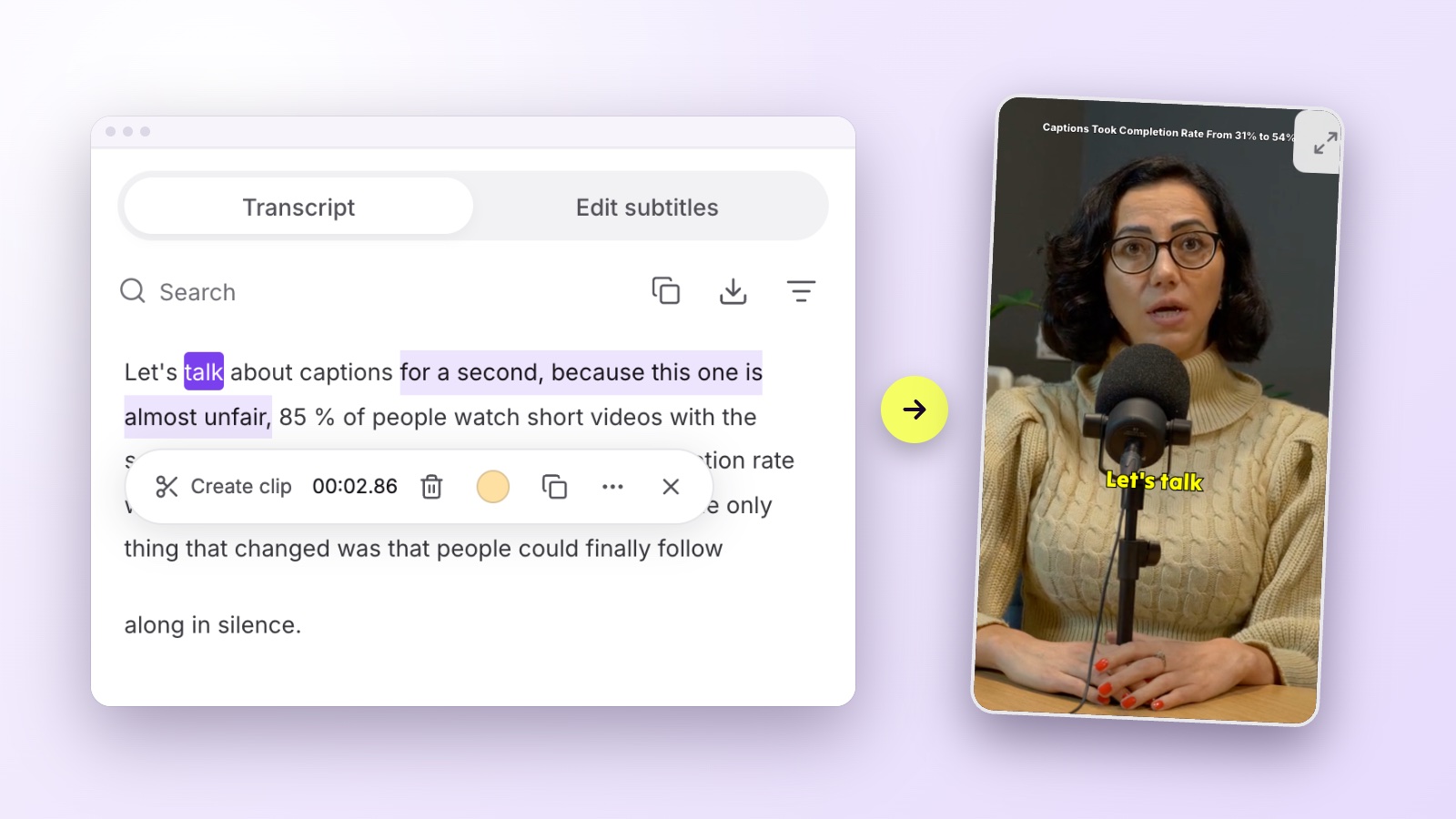
Drag across the words you want gone. A small toolbar appears over the selection with its length in seconds, so you know how much time you are about to take out. Press Delete, or the bin icon, and the passage is cut from the video.
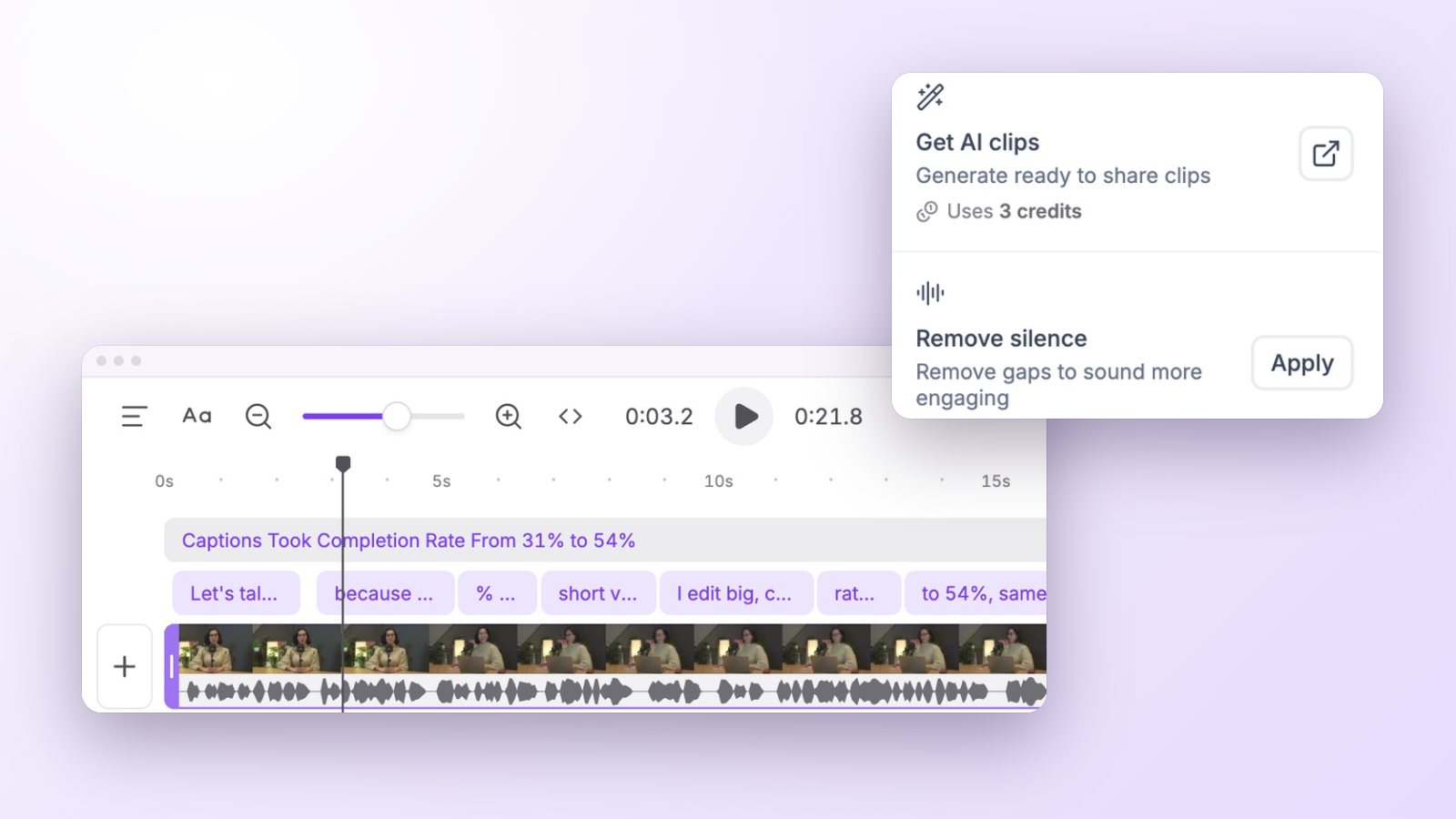
Start with the big cuts, then go back for the small ones. If a cut sounds abrupt, undo it and take one word fewer. Pauses do not show in the text, so leave them to Remove silence in the editor’s AI tools: it is free, and our guide to removing silence and filler words covers how far to go before speech sounds rushed.
What to cut first
Reading a transcript makes the weak parts easy to spot. In most talking videos the first cuts are the same:
- false starts: a sentence begun, dropped and said again; keep the clean take;
- warm-up lines such as “so, today I want to talk about…” before the real first sentence;
- the same point made twice, where the second version is usually the tighter one;
- filler words that stall a sentence, especially at the start of an answer;
- tangents that never come back to the point.
Step 3: Fix the captions without touching the audio
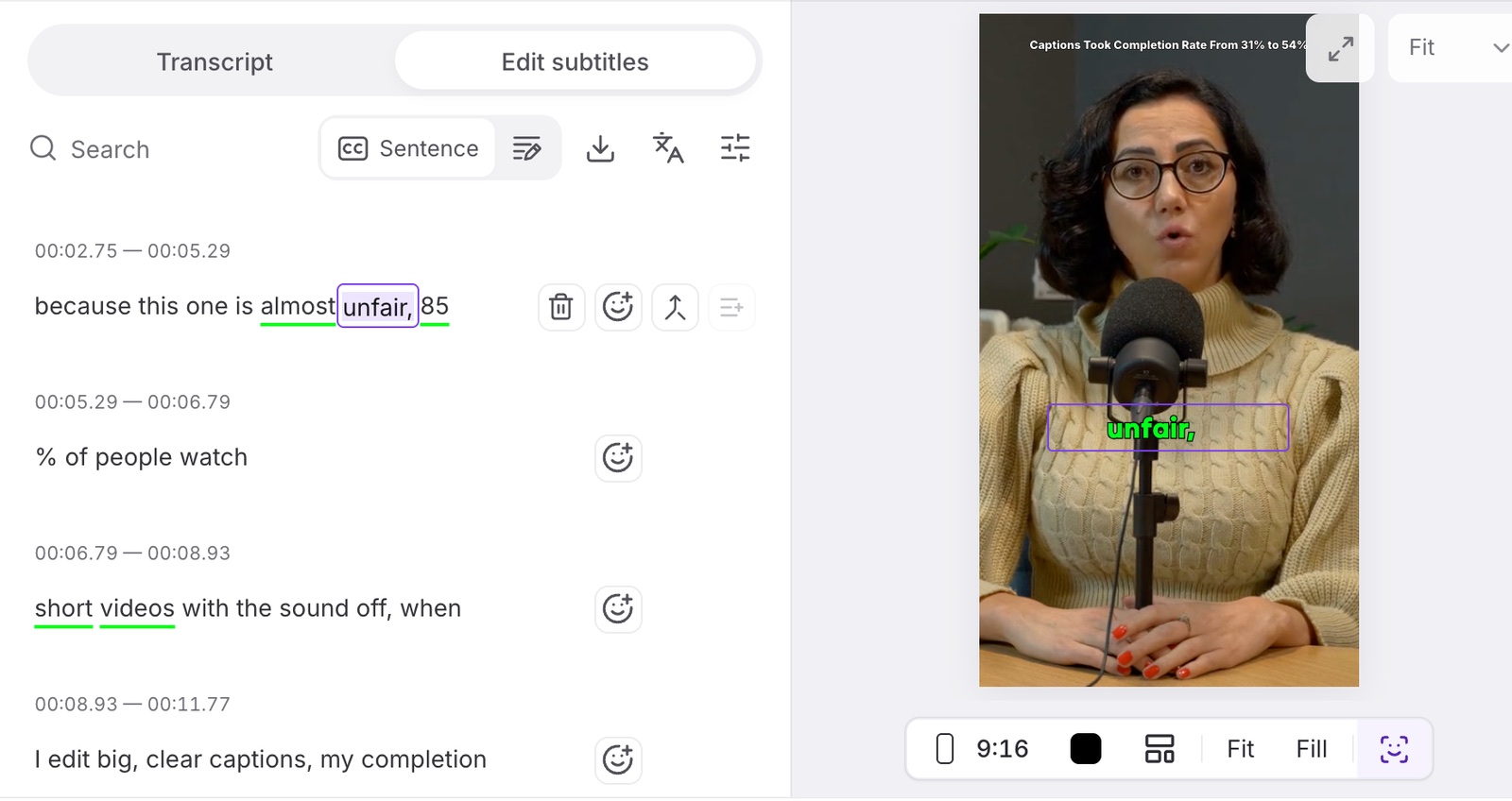
Transcription gets most words right, but names, brands and numbers are worth a check. Switch to Edit subtitles for this. A double-click on a word lets you retype it, and the change shows in the captions only: the audio stays as it was. Press Enter inside a line to split it, merge a line with the next one, insert a new line, or delete a caption without cutting the sound beneath it. Find and replace changes a name everywhere at once.
The same tab is where you pick keywords to emphasize in color and add an emoji to a line. For the look of the captions themselves, see our guide to caption styles that keep people watching.
Step 4: Make clips and notes from the text
The selection toolbar also has Create clip. Select a passage in a long recording, press it, give the clip a title and a shape, and the passage becomes a clip of its own in the project, with its captions, ready to edit and export. It is the quickest way to cut a Short from a podcast when you already know the moment. The colored dot marks a passage instead: markers are private notes in the transcript, never shown in the video, and the filter beside Search shows only the passages of one color.
Not sure where the moments are? Suggest highlights reads the transcript and marks the strongest lines for you to clip, for 2 credits a run. Or let the video to Shorts converter find, score and caption whole clips for you.
When a timeline still works better
Text is the fastest way to decide what is said. A timeline is still the better tool for what is shown: the frame a B-roll shot starts on, music under a voice, a transition between two scenes, a logo in a corner. Vidoveli keeps both in one window, with the timeline under the transcript, and a cut made in one shows in the other.
Our guide on how to edit a video online covers the timeline side: splitting, scenes, B-roll, music and export.
Export, and keep the transcript
When the edit reads well, play it once with sound and once on mute, then export an MP4. The download button above the transcript saves the text as TXT, SRT or VTT, for show notes, a blog post or subtitles on another platform.
Editing, captions and exports use no credits. Free exports are 720p with a small Vidoveli watermark; Creator and Business export in 1080p without it.